

Visual editor
Visual editor — editing the page by clicking, and what is saved to the project
The visual editor shows your page as it looks and lets you edit it by clicking: pick an element, type its text in place or change its style from the inspector, and the change is saved to the project files automatically. It spends no AI requests, so it is available on every plan.
On this page
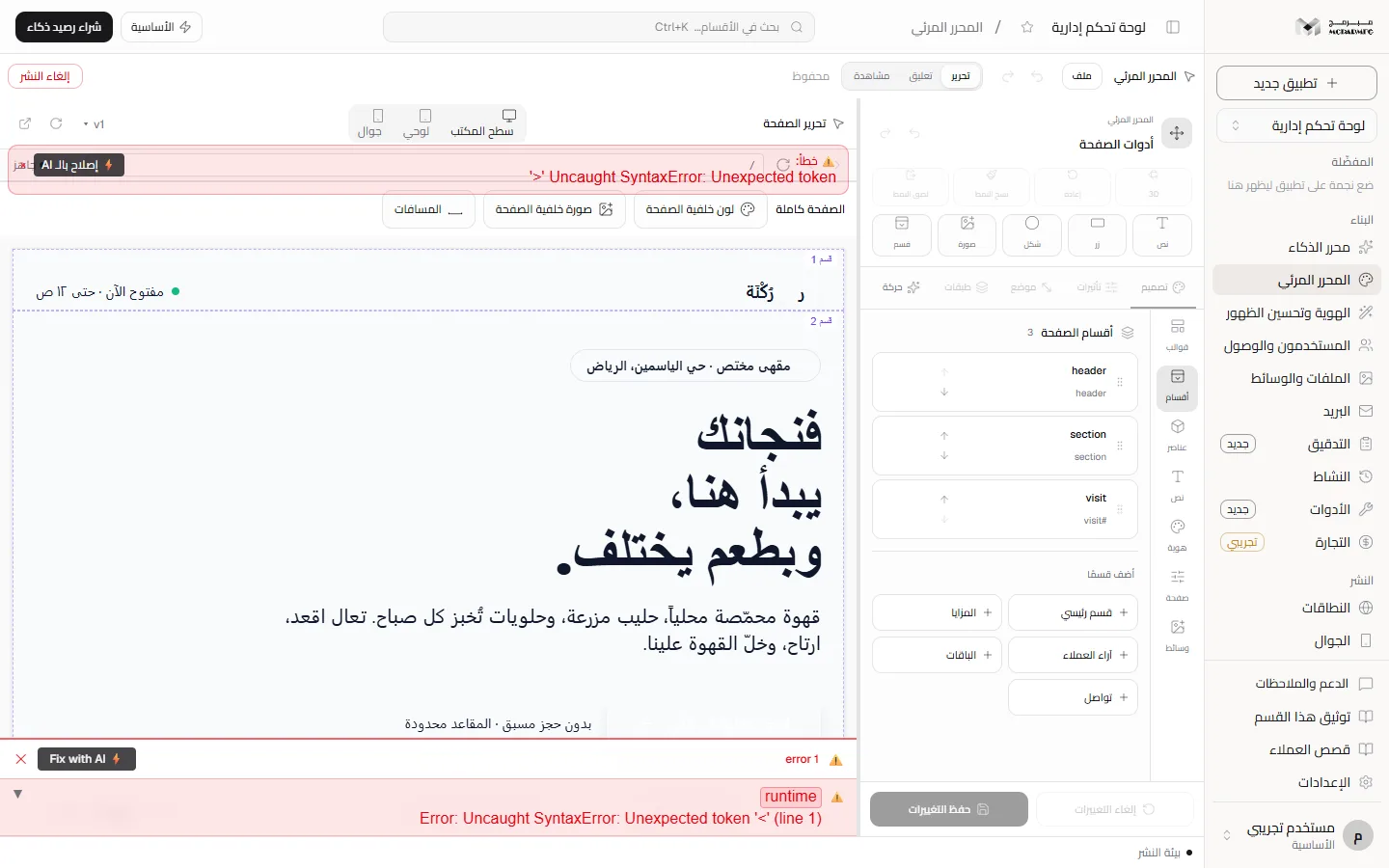
Opening the visual editor
The visual editor is a page inside the project workspace at /projects/[id]/visual, opened from «المحرر المرئي» (Visual editor) in the sidebar. It is the same editor screen without the chat panel: the side column shows the inspector and the preview header reads «تحرير الصفحة» (Edit page). Because it sends nothing to the AI, it is available on every plan, including «المجانية» (Free). For a short orientation see the Visual editor section.
Selecting and editing an element
- Make sure the editor mode in the header is «تحرير» (Edit). The «تعليق» (Comment) and «مشاهدة» (View) modes turn the editing tools off and clear the selection.
- Hover the page to see the hover outline, then click an element. It gets a frame, resize handles and a floating toolbar with «تحريك» (Move), «تحرير النص» (Edit text), «تعليق» (Comment), «قفل أو فتح العنصر» (Lock or unlock), «تكرار» (Duplicate), «حذف» (Delete) and «المزيد» (More).
- To change the text, press «تحرير النص» (Edit text) and type in place.
- To change the look, use the inspector tabs «تصميم» (Design), «تأثيرات» (Effects), «موضع» (Position), «طبقات» (Layers) and «حركة» (Motion). The first four stay disabled until an element is selected and show «اختر عنصراً أولاً» (Select an element first).
- Right-click or «المزيد» (More) opens the context menu: «تحرير النصّ» (Edit text), «المفتّش» (Inspector), «تكرار» (Duplicate), «طبقة أعلى» (Bring forward), «طبقة أسفل» (Send backward), «نسخ النمط» (Copy style), «لصق النمط» (Paste style), «إضافة قسم هنا» (Add section here), «حذف» (Delete), and the grouping commands.
With nothing selected, the side column shows the panels «قوالب» (Templates), «أقسام» (Sections), «عناصر» (Elements), «نص» (Text), «هوية» (Brand), «صفحة» (Page) and «وسائط» (Media): add ready-made sections that inherit the project's colours and fonts, or find a text across the page and replace it with «استبدال الكل» (Replace all). Under the canvas are the page buttons («إضافة صفحة» Add page, «تكرار الصفحة» Duplicate page, «حذف الصفحة» Delete page — the home page index.html cannot be deleted), an «إضافة قسم» (Add section) button, and zoom from 10% to 300%.
Some elements cannot keep an edit, and the element info bar says so: «هذا العنصر ديناميكي أو خادمي؛ يظهر للمعاينة فقط» (dynamic or server-rendered, preview only) or «هذا العنصر مولّد أثناء التشغيل ولا يمكن حفظ تعديله» (generated at runtime, edits cannot be saved).
Saving, and what is written to the project
The header shows three save states: «يُحفظ…» (Saving…), «محفوظ» (Saved) and «● غير محفوظ» (Unsaved). Saving is automatic 1.5 seconds after your last change; you can also press Ctrl+S or use «ملف» (File) then «حفظ التغييرات» (Save changes). Every save is sent together with the revision you started from; if the project changed in another window the save is refused, a message appears in the inspector, and autosave pauses until you decide. Your edits stay on screen.
- HTML project: the edit is written into the HTML file itself — text inside the element, styles on the element identified by its
data-mub-srcattribute. - Next.js project: the editor needs a separate HTML copy. A card «المحرر المرئي يحتاج نسخة HTML قابلة للتحرير» (The visual editor needs an editable HTML copy) offers «إنشاء نسخة HTML قابلة للتحرير» (Create an editable HTML copy); until it succeeds the side column reads «أدوات العنصر تظهر بعد تجهيز نسخة التحرير» (Element tools appear once the editing copy is ready). The copy is stored apart from the project source. On every visual save the server converts it to Next.js and writes both, after saving a restore point named «قبل مزامنة تعديل مرئي إلى Next.js» (Before syncing a visual edit to Next.js). If you later save files from the AI editor or the code view, the visual copy is cleared and must be created again.
In Next.js projects whose elements are edited directly as TSX, some commands are «Not available yet»: keyframe animations, element lock, applying a full template and reordering elements are refused with a message and the source is left unchanged.
Reordering sections and elements
- Sections: in the «أقسام» (Sections) panel drag a section's grip to its new place, or focus the grip and use the arrow keys, Home and End, or Alt with the arrows from anywhere on the row. Escape during a drag cancels it without writing anything and announces «أُلغي السحب؛ لم يتغيّر الترتيب» (Drag cancelled; the order did not change).
- Elements: in the inspector's «طبقات» (Layers) tab drag an element's row among its siblings, or focus its grip and use the arrow keys. An element moves only among its siblings inside the same container.
- Directly on the page: Alt with the arrows on the selected element, as in the shortcuts table below.
- Locks: a section or element locked with «قفل أو فتح العنصر» (Lock or unlock) cannot be moved from any entry point, a section's grip in the «أقسام» (Sections) panel shows a lock, and the refusal is announced with a message ending «مقفل؛ افتح القفل لنقله» (is locked; unlock it to move it).
- Screen readers: after every move the section or element name and its new position out of the total are announced, and it is also announced when it is already first or last and did not move.
Undo and redo
«تراجع» (Undo, Ctrl+Z) and «إعادة» (Redo, Ctrl+Y or Ctrl+Shift+Z) are always visible in the header and in the inspector, and also sit in the context menu. History keeps up to 50 steps in the memory of the open page and does not survive a reload; to go further back use version history.
Keyboard shortcuts
They work in «تحرير» (Edit) mode when the cursor is not inside a text field. The full list is under «ملف» (File) then «اختصارات لوحة المفاتيح» (Keyboard shortcuts), or Ctrl+/.
| Shortcut | Action |
|---|---|
| Delete or Backspace | Delete the selected element |
| Ctrl+D | Duplicate the element |
| Ctrl+C then Ctrl+V | Copy and paste the element |
| Ctrl+Alt+C then Ctrl+Alt+V | Copy a style and paste it onto another element |
| Ctrl+G / Ctrl+Shift+G | Group / ungroup |
| Alt+Shift+L | Lock or unlock the element |
| Alt+↑ / Alt+↓ | Move the selected section or element one step |
| Alt+Home / Alt+End | Move it to the start or end of the order |
| Alt+→ / Alt+← | Inside a horizontal row on the page: toward the start or end, following the row's direction |
| Esc | Clear the selection |
Limits
- Project size is limited by your plan; a save that exceeds it is refused with a message ending «ويتجاوز حدّ باقتك» (exceeds your plan's limit).
- A collaborator whose access to the project is read-only sees a bar under the header, «وضع المشاهدة — صلاحيتك في هذا المشروع للقراءة فقط، والتعديلات هنا لا تُحفظ.» (View mode — your access to this project is read-only, and edits here are not saved); the editor sends no save for them, and the server refuses the save as well.
- The «المجانية» (Free) plan includes 1 project, the visual editor and templates, but no AI — see Building with AI.
- On a phone the canvas fills the screen and the inspector opens as a bottom sheet titled «المفتّش» (Inspector) or «تحرير العنصر» (Edit element).
- «تصدير HTML» (Export HTML) and «تنزيل المشروع ZIP» (Download project ZIP) are in the «ملف» (File) menu.
FAQ
Does the visual editor use my AI quota?
No. Editing and saving go through the project save route, not the AI routes, which is why it works on the free plan.
Why was my save refused and autosave paused?
Because the project revision on the server changed after you started editing, usually from another window. Your edits stay visible, and the decision is yours before any new save.
Why do I see the «إنشاء نسخة HTML قابلة للتحرير» card?
Because the project is Next.js. The visual editor works on a separate HTML copy and syncs your edits back to Next.js when you save.