

Workspace sections
Branding and visibility in Mubarmij
What you save here is injected into your published pages on every visit: title, icon, social tags, colour variables, and the badge. There are five tabs, and one «حفظ» (Save) button at the top saves them all.
On this page
How saving works
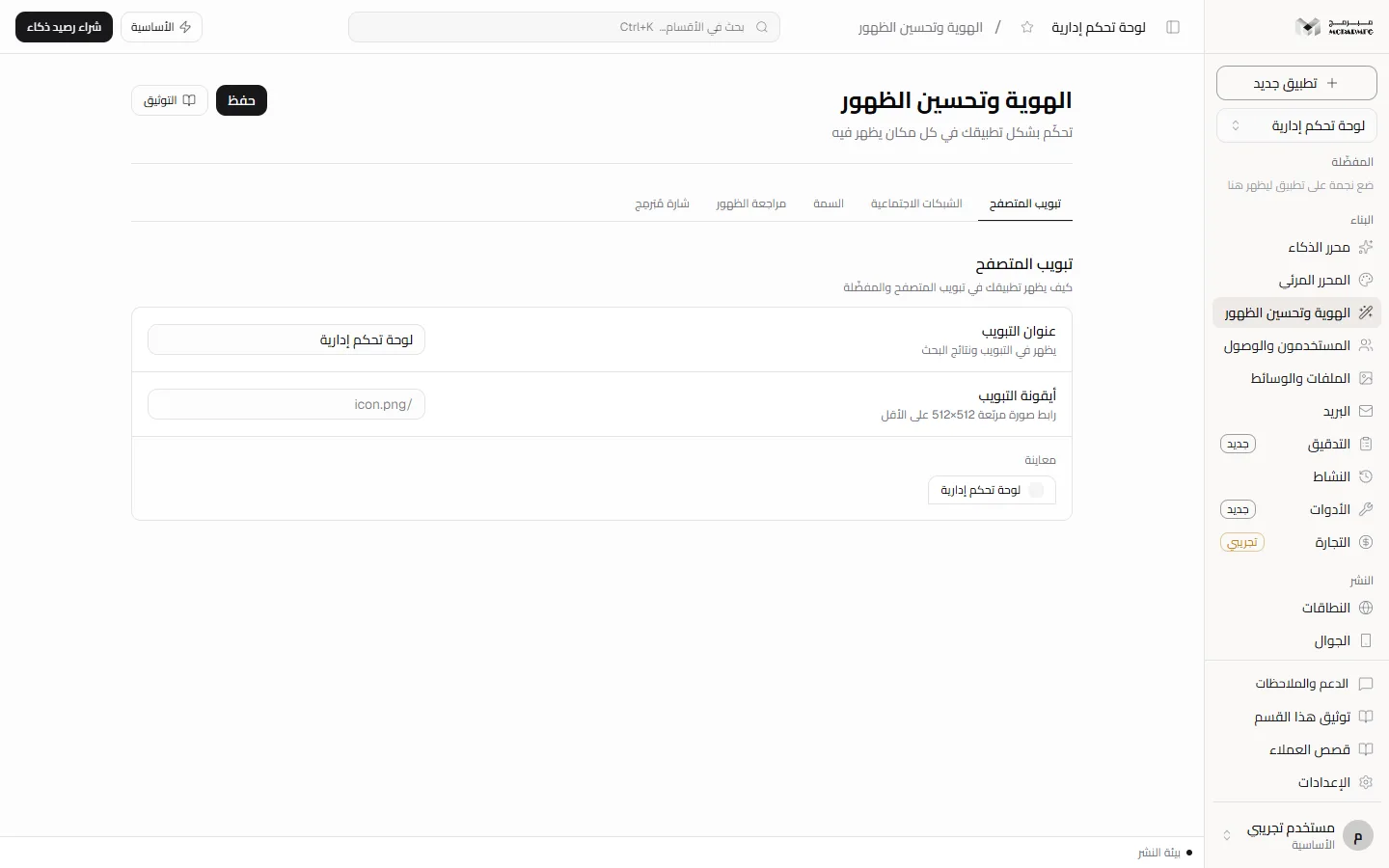
Open «الهوية وتحسين الظهور» (Branding and visibility) from the «البناء» (Build) group in the sidebar. Five tabs sit at the top: «تبويب المتصفح» (Browser tab), «الشبكات الاجتماعية» (Social networks), «السمة» (Theme), «مراجعة الظهور» (Visibility review) and «شارة مُبَرمِج» (Mubarmij badge). Your edits are kept on the page while you switch tabs. They are sent to the server only when you click «حفظ» (Save) at the top, which shows «حُفظت الإعدادات» (Settings saved). Leaving the page first loses them. The section is available on every plan.
A collaborator with the «مشاهد» (Viewer) role can see the section; «حفظ» (Save) needs the «محرر» (Editor) or «مدير» (Admin) role. The badge switch in Settings is for the project's admin or owner.
Tab title and icon
- In «تبويب المتصفح» (Browser tab), type «عنوان التبويب» (Tab title). It starts as your project name.
- In «أيقونة التبويب» (Tab icon), paste the URL of a square image of at least 512×512. There is no upload button here: upload the image in Files and media and use its link.
- Check «معاينة» (Preview) below, then click «حفظ» (Save).
On the published site the title replaces the page's existing title tag, or is added if there is none. The icon is added only when the page does not declare its own. The URL must start with http, https or a slash, or it is ignored.
Social card
«الشبكات الاجتماعية» (Social networks) holds the «بطاقة المشاركة» (Share card) panel: «عنوان البطاقة» (Card title), «صورة البطاقة» (Card image, a 1200×630 URL) and «الوصف» (Description, 160 characters with a counter). The page gets og:title and twitter:title (the tab title is used when the card title is empty), description and og:description, and og:image with a large twitter card. Any tag your page already declares is kept and not duplicated.
Theme and colours
- In «السمة» (Theme), search «معرض السمات» (Theme gallery) with «ابحث في السمات…» (Search themes…) or browse the cards, and click one to set the mode and the four colours together.
- For manual control use «ضبط دقيق» (Fine tuning): «الوضع» (Mode: «داكن» dark or «فاتح» light), «اللون الأساسي» (Primary), «لون التمييز» (Accent), «الخلفية» (Background) and «النص» (Text).
- Click «حفظ» (Save).
Colours are injected as CSS variables (--primary, --accent, --background, --foreground), so they only change elements your code styles with those variables. Values containing a semicolon, braces or url( are ignored. «لون سمة تطبيق الجوال» (Mobile app theme colour) does not change your site; it becomes the system bar colour when you enable mobile support.
Visibility review
In «مراجعة الظهور» (Visibility review), click «شغّل المراجعة» (Run review). It reads your project's own pages, so it needs no publish and no save, and it does not use AI or its quota. You get a score out of 100 labelled «ظهور قوي» (Strong visibility, 80+), «يحتاج تحسينًا» (Needs improvement, 50+) or «نواقص أساسية» (Basic gaps), the last check time and page count, and findings explaining what was found or missing. See also SEO.
The «صُنع بمُبَرمِج» (Made with Mubarmij) badge
The «شارة مُبَرمِج» (Mubarmij badge) tab has one switch, «إظهار الشارة» (Show badge). The badge is a small fixed link in the corner of every published page, pointing to Mubarmij.
When the site is served, the badge is hidden only if your plan includes hiding it and you turned the switch off. Plans that include hiding in the contract: «الأساسية» (Basic), «المميزة» (Premium), «الاحترافية» (Professional).
The switch hint in this tab says «إخفاؤها متاح في الخطة الاحترافية» (hiding is available on the Professional plan), but the contract allows hiding from the «الأساسية» (Basic) plan. On the «المجانية» (Free) plan the switch saves as off with no error, yet the badge stays on the published site. The same switch in Settings refuses openly with an upgrade message.
Where these settings apply
Branding is read on every visit to the published address, so changes show right after «حفظ» (Save) without republishing. That holds when the platform serves your site's files directly. An app running in your paid plan's container has its requests passed to the container, and these tags and the badge are not injected there.
FAQ
Where do I rename the project itself?
The tab title here is what visitors see. The project name inside Mubarmij is managed in Settings.
Why didn't my site's colours change after saving?
The variables are only defined. If your pages use hard-coded colours instead of var(--primary) and similar, nothing changes.