

Building with AI
Chat — writing to the AI in the Moparmeg editor
Chat is how you write to the AI inside your project. Type the request, attach an image if you like, and follow the reply and the files in the same place. It works on paid plans only.
On this page
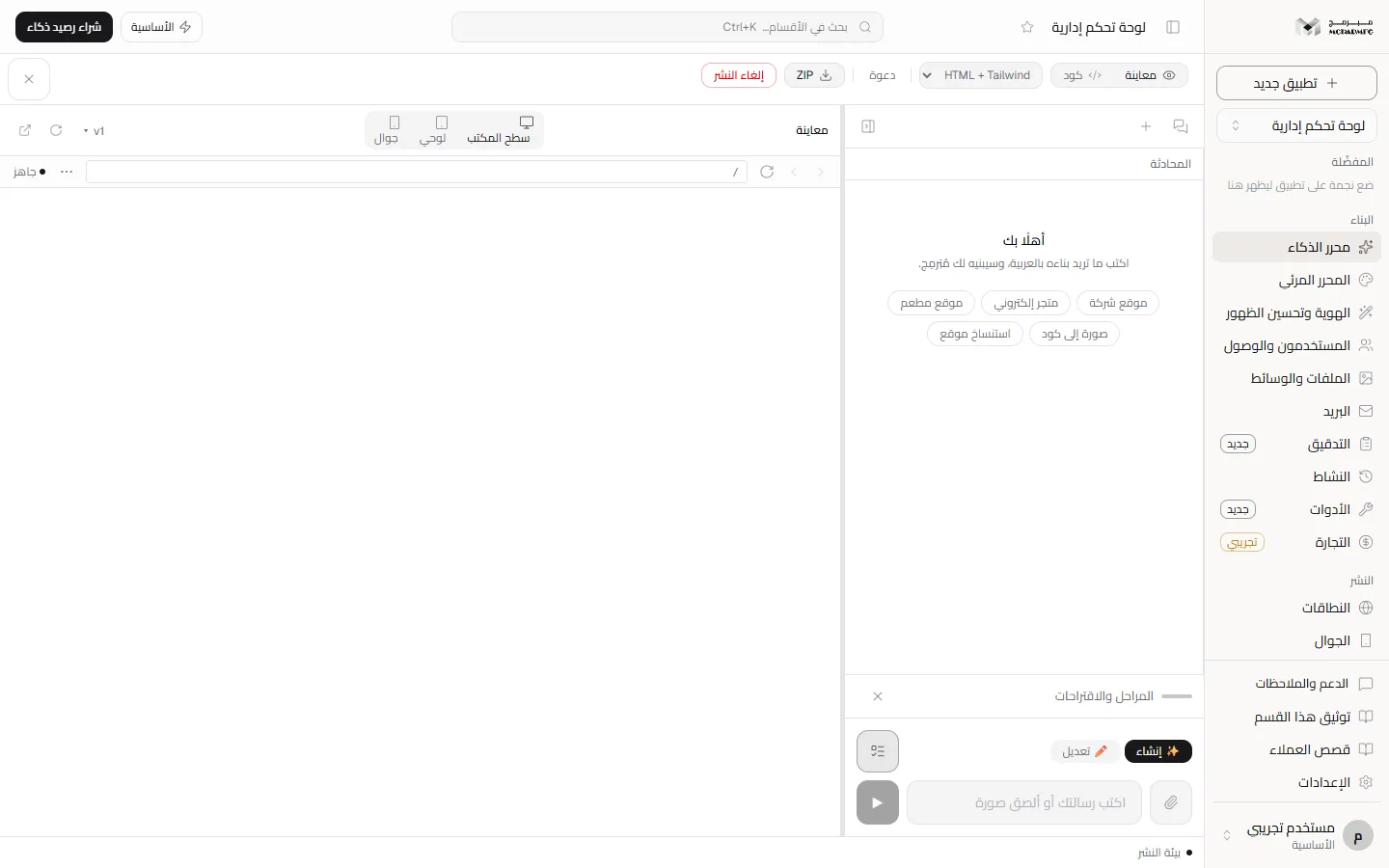
The chat panel
The panel header has «المحادثات» (Conversations) for the project's conversation list, «محادثة جديدة» (New conversation) to start an empty one, the «متبقي» (remaining) request count, and «طيّ المحادثة» (Collapse chat). An empty conversation shows «أهلًا بك» (Welcome) with ready suggestions: «موقع شركة» (Company site), «متجر إلكتروني» (Online store), «موقع مطعم» (Restaurant site), «صورة إلى كود» (Image to code), «استنساخ موقع» (Clone a site). Each reply has a «نسخ» (Copy) button, and you can «مسح المحادثة» (Clear conversation) or «ابدأ فرعًا من هذه النقطة» (Branch from here) to try another direction without losing the original.
Sending a request
- Pick the mode above the box — «✨ إنشاء» (Generate) or «✏ تعديل» (Edit) — and a model if you want. On a phone both are under «⚙ إجراءات» (Actions).
- Type into «اكتب رسالتك أو ألصق صورة» (Write your message or paste an image). Enter sends; Shift+Enter adds a line.
- Follow the reply; «إيقاف» (Stop) or Escape cancels the running request in the browser and on the server, so no new files are written if the stop comes before saving.
Before every AI request a project version named «قبل تعديل AI» (Before AI edit) is saved, so several small requests give you finer restore points. What happens after sending is in Building with AI.
How your request is routed
- A project with files and a request to add or change something: sent as an edit even if the toggle is on «✨ إنشاء» (Generate); the toggle visibly switches to «✏ تعديل» (Edit).
- A bare link: a message that is only an address starting with http is treated as a request to clone that site.
- Commands: messages such as installing an npm package, Prisma or Git commands, or «انشر» (publish) run through the terminal and publish routes directly, not through the model; see Terminal.
- A clarifying question: the server may reply with a question instead of files when it needs information.
Attaching images
The paperclip button «رفع صورة أو لوجو (أو ألصقها في الخانة)» (Upload an image or logo, or paste it into the box) accepts images only; you can also paste or drag an image into the box. A non-image file is refused with «يمكن إرفاق الصور فقط.» (Only images can be attached). On the server: at most 4 images per request, each up to 5MB, and an image sent with no text goes out as «استخدم الصورة المرفقة كمرجع للطلب.» (Use the attached image as the reference for the request).
Instructions while it works
You do not have to wait for a request to finish to add a note. While it works the box changes to «اكتب تعليمةً تُنفَّذ بعد هذه الخطوة… أو ألصق صورة» (Write an instruction to run after this step… or paste an image) and a 🕓 «أضِف للدور التالي» (Add to the next turn) button appears. Each instruction is queued as a chip above the box, removable with «أزل التعليمة» (Remove instruction), and saved on the conversation. When the running request ends — completed, failed or stopped — all queued instructions are sent together as one edit request on the result. One instruction can be up to 2000 characters.
Results and undo
Files are applied in the editor only after the server has saved them. If you edit files yourself during a request, your edits are kept and you see «وصلت نتيجة الذكاء، لكن توجد تعديلات محلية أحدث لم تُستبدل.» (AI result arrived, but newer local edits were not replaced). To go back to before a request use Ctrl+Z in the editor or version history.
Quota and plans
Every request that reaches the AI counts as one against your daily quota: 50 on «الأساسية» (Basic), 200 on «المميزة» (Premium), 1000 on «الاحترافية» (Professional). On «المجانية» (Free) the box is not shown; «رقِّ باقتك لتفعيل الذكاء الاصطناعي» (Upgrade to enable AI) takes its place. On a project where you are a collaborator the box is not shown either; «توليد الذكاء الاصطناعي في هذا المشروع لمالكه وحده…» (AI generation in this project is for its owner only…) takes its place, with no upgrade button. Terminal commands, manual saves and the visual editor do not use quota. The «🧭 خطة احترافية» (Professional plan) mode appears only for accounts with the professional builder entitlement, granted automatically with «الاحترافية» (Professional); that mode is «تخطيط فقط — بلا تعديل ملفات» (Planning only — no file changes).
Referencing a preview element inside your message is «Not available yet»: the input box can display referenced elements, but the «+ أضفه للمحادثة» (Add to chat) button does not appear in any current preview mode.
FAQ
Why was my request sent as an edit when I chose «✨ إنشاء» (Generate)?
Because the project has files and the request reads as an addition or change. This is deliberate, so a small request never replaces your whole project.
Is my message lost if I type it while the AI is working?
No. It is queued and saved on the conversation, and sent with the other instructions once the current step ends.
How many images can I attach?
Four per request, each up to 5MB.