
Publishing and domains
The mobile section in Mubarmij — install from the browser (PWA)
The «الجوال» (Mobile) section does not build a native app. It writes into your project the two files a browser needs to offer «إضافة إلى الشاشة الرئيسية» (Add to Home Screen), then gives you a link and a QR code to try on your phone after publishing.
On this page
Step one: readiness checks
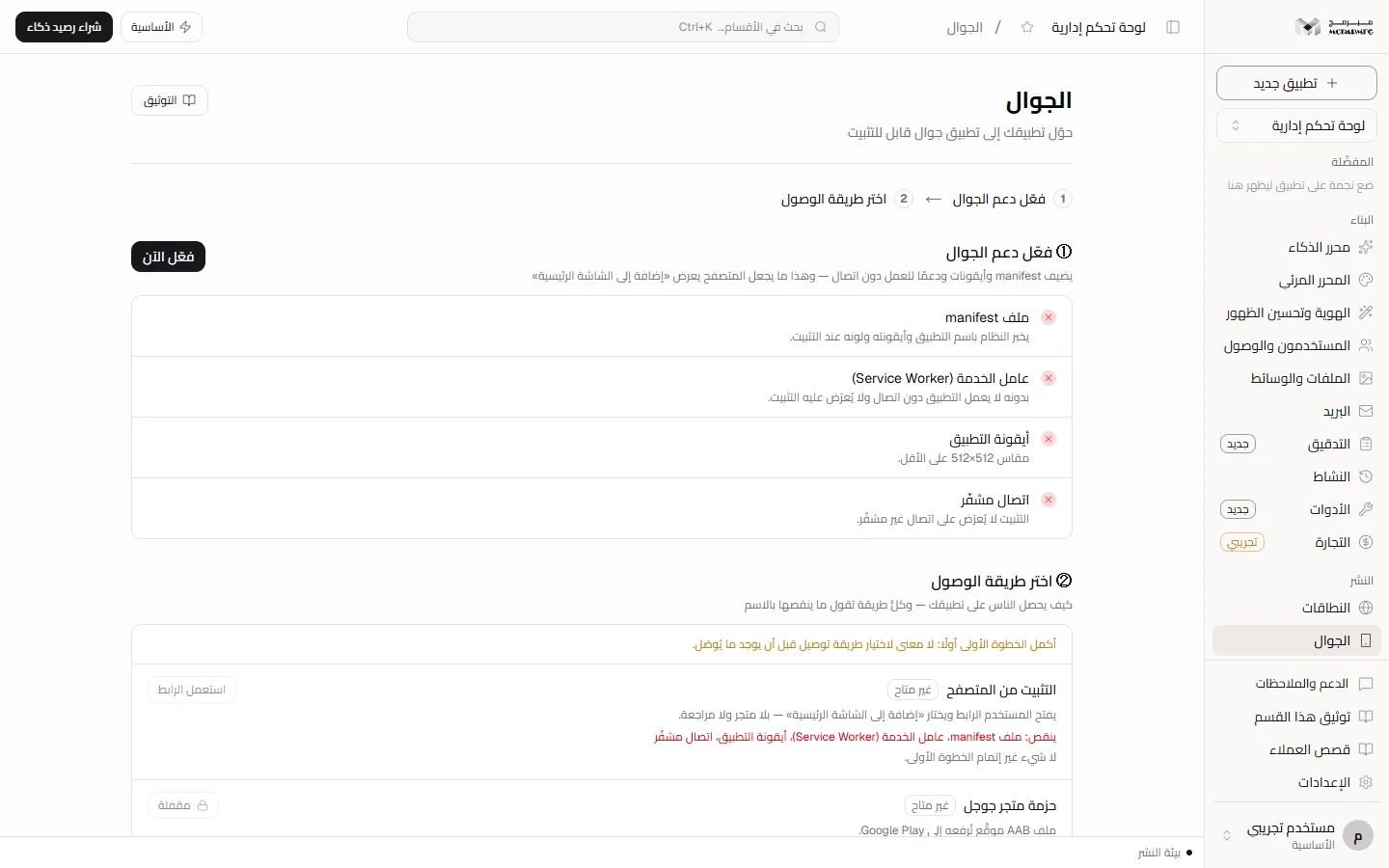
Open «الجوال» (Mobile) from the «النشر» (Publish) group in the sidebar. The section is not locked on any plan, but it is for the project owner only: it is hidden from the sidebar for collaborators of any role, and a direct request to its route is refused with «هذا الإجراء لمالك المشروع وحده» (This action is for the project owner only). Two steps sit at the top: «فعّل دعم الجوال» (Enable mobile support) then «اختر طريقة الوصول» (Choose a delivery method). The «① فعّل دعم الجوال» (Enable mobile support) panel inspects your project's own files and shows four items with a tick or a cross:
- «ملف manifest» (Manifest file) — a manifest.json or manifest.webmanifest exists.
- «عامل الخدمة (Service Worker)» — an sw.js or service-worker.js exists.
- «أيقونة التطبيق» (App icon) — a tab icon saved in Branding, or a PNG or SVG file whose name starts with icon.
- «اتصال مشفّر» (Encrypted connection) — the platform address starts with https.
Enabling mobile support
- (Optional but important) In Branding, save «أيقونة التبويب» (Tab icon) as a link to a square 512×512 PNG, and «لون سمة تطبيق الجوال» (Mobile app theme colour).
- In «① فعّل دعم الجوال» (Enable mobile support), click «فعّل الآن» (Enable now), or «أعد التهيئة» (Re-initialise) if all items pass.
- The message «كُتبت ملفات الجوال في المشروع — انشر ليُربطا في موقعك؛ عرض التثبيت قرار المتصفح» (Mobile files written to the project — publish to link them; the install prompt is the browser's decision) appears, and a PWA row is added to «سجل البناء» (Build log).
- Publish the project. The published site serves the files of the last publish, so the two files do not reach visitors before you publish.
Exactly what is written at the project root:
manifest.json: name is the project name, short name is the first 12 characters of the tab title, display is standalone, direction right-to-left, and theme colour is «لون سمة تطبيق الجوال» (Mobile app theme colour). The icon is the tab icon declared as a 512×512 PNG; without a saved tab icon the file has no icons.sw.js: a service worker that fetches from the network first and keeps a copy, serving the cached copy or the home page when offline.
Every enable replaces any manifest.json or sw.js at the project root. When the page is served, Mubarmij automatically adds the manifest link and the service worker registration unless your page already does. This applies to sites the platform serves directly.
Step two: choose a delivery method
«② اختر طريقة الوصول» (Choose a delivery method) lists three methods, each marked «متاح» (Available) or «غير متاح» (Unavailable) with an «ينقص:» (Missing:) line naming what is missing:
- «التثبيت من المتصفح» (Install from the browser) — available once step one passes. «استعمل الرابط» (Use the link) points you to the QR code below.
- «حزمة متجر جوجل» (Google Play package) — its button reads «مقفلة» (Locked).
- «حزمة متجر آبل» (Apple App Store package) — its button reads «مقفلة» (Locked).
Not available yet: «حزمة متجر جوجل» (Google Play package, AAB). The platform has no Android package builder, and the server refuses with HTTP 501: «حزمة أندرويد غير متاحة بعد: لا يوجد بانٍ لملف AAB على المنصة» (Android package not available yet: there is no AAB builder on the platform). When added it will need a signing key saved in Secrets as ANDROID_KEYSTORE.
Not available yet: «حزمة متجر آبل» (Apple App Store package, IPA). It needs an Apple developer account, a signing certificate and a provisioning profile; the server refuses with HTTP 501 without starting a build.
Try it on your phone
- Once readiness passes, the «جرّبه على هاتفك» (Try it on your phone) panel shows a QR code and your site link.
- Scan the code with the phone camera to open the published site.
- From the browser menu choose «إضافة إلى الشاشة الرئيسية» (Add to Home Screen).
Offering install is the browser's decision, not a promise from Mubarmij: it may not appear if you did not publish after enabling, if the icon is invalid, or if the browser refuses to register the service worker.
Build log
«سجل البناء» (Build log) shows the last 20 enable runs with status, platform (PWA), version, date and log message. Before any run it shows «لم يُبنَ شيء بعد» (Nothing built yet). If writing fails, the row is recorded as failed with the error.
FAQ
Do I get an APK or a store app?
No. The output today is a web app installed from the browser only.
I re-enabled and my own manifest disappeared. Why?
«فعّل الآن» (Enable now) and «أعد التهيئة» (Re-initialise) rewrite manifest.json and sw.js over any files with those names at the project root. You can restore from version history if you saved a version before.