

Workspace sections
Users and access in Mubarmij
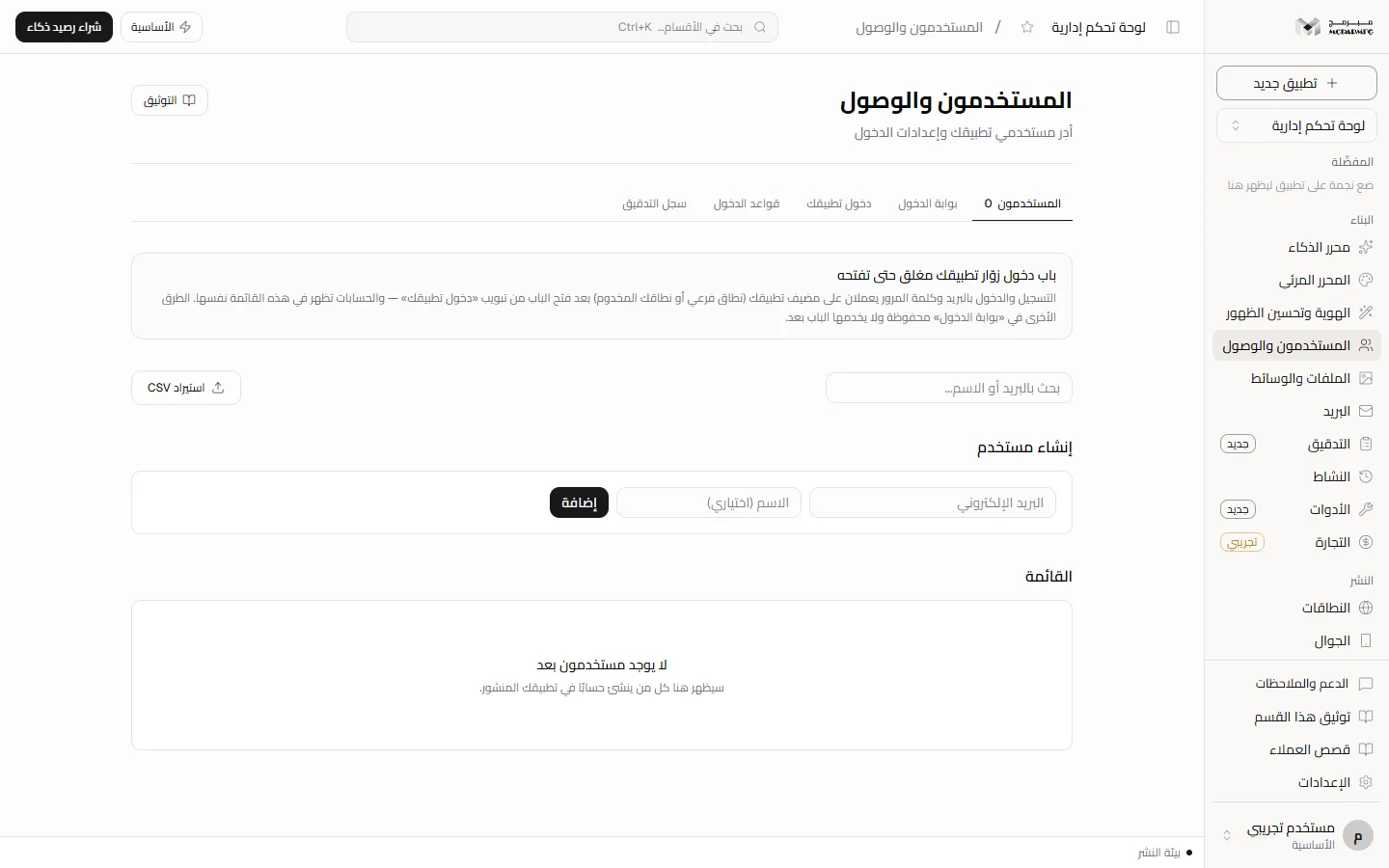
This section manages your own app's users, not your Mubarmij account. You add them yourself, or open the sign-in door so visitors create accounts with email and password on your app's domain, and everyone appears in the same list.
On this page
The door serves «بريد وكلمة مرور» (Email and password) only, and only on your app's own host: an activated subdomain or your connected domain. An app published on the platform address without a served domain cannot sign its visitors in. The other sign-in methods in «بوابة الدخول» (Login portal) are not available yet: they are saved but the door does not serve them.
Who can open the section
«المستخدمون والوصول» (Users and access), in the «البناء» (Build) group, requires the hosting capability. Plans that include it: «الأساسية» (Basic), «المميزة» (Premium), «الاحترافية» (Professional). On the «المجانية» (Free) plan the section shows a lock in the sidebar, and opening it returns HTTP 402 with: «الاستضافة متاح في الباقات المدفوعة فقط — خطة المجانية تشمل القوالب الجاهزة والمحرّر المرئي.» (Hosting is available on paid plans only — the Free plan includes ready templates and the visual editor.) Upgrade from Billing. The section is for the project owner only: a collaborator with any role is refused with «هذا الإجراء لمالك المشروع وحده» (This action is for the project owner only).
Adding a user
- In the «المستخدمون» (Users) tab, in the «إنشاء مستخدم» (Create user) panel, enter «البريد الإلكتروني» (Email) and «الاسم (اختياري)» (Name, optional).
- Click «إضافة» (Add). On success «أُضيف المستخدم» (User added) appears and the row joins «القائمة» (List).
Refusals: «البريد الإلكتروني غير صالح» (Invalid email), «هذا البريد مسجّل بالفعل» (Already registered), «هذا البريد ممنوع بقاعدة دخول» (Blocked by a sign-in rule) when a deny rule matches, or «سياسة التسجيل «بموافقتي فقط» ولا توجد قاعدة سماح تطابق هذا البريد» (Policy is approval-only and no allow rule matches). Refusals are logged in the audit log with outcome «مرفوض» (Refused) and a reason.
Importing from CSV
- Prepare a file with one user per line: an email alone, or email, comma, name.
- Click «استيراد CSV» (Import CSV) and pick the file.
- A message shows the number of rows sent. Duplicate emails are skipped, so re-importing the same file is harmless.
Note: import does not apply the allow and deny rules that «إضافة» (Add) applies. With no valid email in the file you see «لم يُعثر على بريد صالح في الملف» (No valid email found in the file).
List and search
Search with «بحث بالبريد أو الاسم…» (Search by email or name…). The table shows the latest 200 users with «الاسم» (Name), «البريد» (Email), «موثّق» (Verified, a switch you set manually), «آخر طريقة دخول» (Last sign-in method) and «الانضمام» (Joined), and a delete button per row. Deletion is immediate, with no confirmation. The total count is shown on the «المستخدمون» (Users) tab.
Accounts that visitors create themselves through the sign-in door appear in the same table. «موثّق» (Verified) turns on when a visitor verifies their email or sets a password from a reset link.
Your app's visitor sign-in
The «دخول تطبيقك» (App sign-in) tab shows the door's state with a «يعمل» (Working) or «غير مكتمل» (Incomplete) badge, and rows «الباب» (Door), «بريد وكلمة مرور» (Email and password), «مضيف التطبيق» (App host) and «البريد» (Email delivery) naming what is missing. The door stays closed until you open it, and while closed every endpoint returns 404.
- In the «بوابة الدخول» (Login portal) tab, enable the «بريد وكلمة مرور» (Email and password) method and click «احفظ طرق الدخول» (Save sign-in methods). It is the only method the door serves.
- Make sure your app has a served domain: activate a subdomain or connect your domain in Domains. The door does not work on the platform address (
/your-site), because every site there shares one origin. - In «دخول تطبيقك» (App sign-in), turn on «فتح الباب» (Open the door). If the password method is not enabled the server refuses with «فعّل طريقة «بريد وكلمة مرور» في «بوابة الدخول» أولًا — هي الطريقة التي يخدمها باب دخول الزوّار» (Enable the Email and password method in the Login portal first — it is the method the visitor door serves).
- (Optional) Turn on «اشتراط توثيق البريد» (Require email verification).
- In «أضِف الأزرار إلى تطبيقك» (Add the buttons to your app), click «نسخ المقطع» (Copy snippet) and paste it into your pages. Its «تسجيل الدخول» (Sign in), «إنشاء حساب» (Create account) and «تسجيل الخروج» (Sign out) buttons take the visitor to a hosted sign-in page and back to the same page.
While the door is open, Mubarmij injects the visitor's state into your site's pages on your app's domain: elements with data-auth="signed-in" show only to a signed-in visitor, data-auth="signed-out" only to a signed-out one, and data-auth-name is filled with their name; from code use window.MubarmijAuth.user. A visitor session lasts 14 days. An app running in its own container gets nothing injected, so it calls the door's endpoints from its own origin: signup, login, logout (POST) and me (GET).
Email verification and password reset send a link by email, so they need email delivery configured on the server (the «البريد» row). A reset link is valid for 60 minutes and a verification link for 48 hours, each for one use. If you require verification and email is not configured, sign-up is refused with «التسجيل يتطلّب توثيق البريد، والبريد غير مضبوط على الخادم — لم يُنشأ حساب» (Sign-up requires email verification and email is not configured on the server — no account was created), and a visitor you require to verify cannot sign in before verifying.
The door has rate limits: 5 sign-ups per hour per IP address, and 20 sign-in attempts per 15 minutes per address and 8 per email. After that the visitor sees «محاولات كثيرة — حاول بعد قليل» (Too many attempts — try again shortly).
Sign-in rules
- Open «قواعد الدخول» (Sign-in rules) and choose «سماح» (Allow) or «منع» (Deny) in «قاعدة جديدة» (New rule).
- Type a pattern:
*@example.comor@example.comfor a whole domain, or one exact email. - Click «إضافة» (Add). The rule appears under «القواعد» (Rules) with an «مفعّلة» (Enabled) switch and a delete button.
A deny rule always refuses: when you add a user, when a visitor signs up, and when a visitor signs in, even if the rule was added after they signed up. Allow rules only bind when the policy is «بموافقتي فقط» (Approval only); under «الجميع» (Everyone) any valid email that no rule denies is accepted.
Under «بموافقتي فقط» (Approval only) the two paths differ: a user you add with «إضافة» (Add) is accepted when there are no allow rules at all, because your adding them is the approval. A visitor can sign up only with an allow rule matching their email, and no rules means refusal.
Login portal
The «بوابة الدخول» (Login portal) tab saves «نطاق البوابة» (Portal domain), «عنوان البوابة» (Portal title), «الشعار» (Logo), «لون الأزرار» (Button colour), «اللغة الافتراضية» (Default language) and legal links, plus the panels «طرق الدخول» (Sign-in methods), «رسائل الدخول» (Sign-in emails), «روابط إعادة التوجيه» (Redirect URLs) and «من يستطيع التسجيل؟» (Who can sign up?: «الجميع» Everyone or «بموافقتي فقط» Approval only). Methods that need credentials ask for «معرّف العميل (Client ID)» and a secret saved in Secrets.
The sign-in page the door opens uses «عنوان البوابة» (Portal title) and «لون الأزرار» (Button colour) from these settings, plus the legal links when «إظهار الشروط وسياسة الخصوصية» (Show terms and privacy policy) is on, and it is shown in Arabic. Verification and reset emails carry «اسم التطبيق في الرسالة» (App name in the email) and «تذييل الرسالة» (Email footer).
Not available yet: the door does not read «نطاق البوابة» (Portal domain), «الشعار» (Logo), «اللغة الافتراضية» (Default language), «المرسِل» (Sender), «عنوان الرسالة» (Email subject) or «روابط إعادة التوجيه» (Redirect URLs), and it serves no sign-in method other than «بريد وكلمة مرور» (Email and password). The «طرق الدخول» (Sign-in methods) panel itself says «يعمل اليوم «بريد وكلمة مرور» وحدها: حين تفعّلها يخدم باب الدخول زوّار تطبيقك على نطاقه المخدوم، لا على عنوان المنصّة. الطرق الأخرى غير متاحة بعد، وما تفعّله منها يُحفَظ فقط.» (Only Email and password works today: when you enable it, the sign-in door serves your app's visitors on its served domain, not on the platform address. The other methods are not available yet, and enabling them only saves the setting.)
Audit log
«سجل التدقيق» (Audit log) shows the last 100 events in the app workspace, such as adding or refusing a user, saving branding, running audits, creating folders and deleting files. Filter with «بحث في السجل…» (Search the log…) or the «كل الأحداث» (All events) list. «تصدير CSV» (Export CSV) downloads up to 10,000 events with time, user, event, target, outcome, reason and method columns, encoded so Excel reads Arabic correctly.
It also records sign-in door events: a visitor signing up or being refused, signing in and failed sign-ins with the reason, password resets, email verification, and email delivery failures. This log is about your app's users; what your team does in the project, such as invitations and role changes, is in the Activity section.
FAQ
Can visitors to my site create accounts now?
Yes, with email and password, once you open the door in «دخول تطبيقك» (App sign-in) and your app has a served domain. On the platform address without a served domain they cannot.
Is an email sent when I add a user?
«إضافة» (Add) sends no message. Email is sent only for the verification and password reset links of door accounts.
I added a user myself. How do they sign in?
They have no password yet. They request a password reset from the sign-in page and receive a link to set one, which needs email delivery configured on the server.