

Workspace sections
Workspace Settings section — rename, visibility, members, transfer and delete | Moparmeg
The «الإعدادات» (Settings) section, listed in the sidebar as «المزيد» (More), groups your app's basic settings in seven tabs: «عام» (General), «الصلاحيات» (Permissions), «التصدير» (Export), «Webhooks», «نقل الملكية» (Transfer ownership), «الأمان» (Security) and «منطقة الخطر» (Danger zone). The Export, Transfer and Danger zone tabs are shown to the owner and platform admins only. Every change saves immediately.
On this page
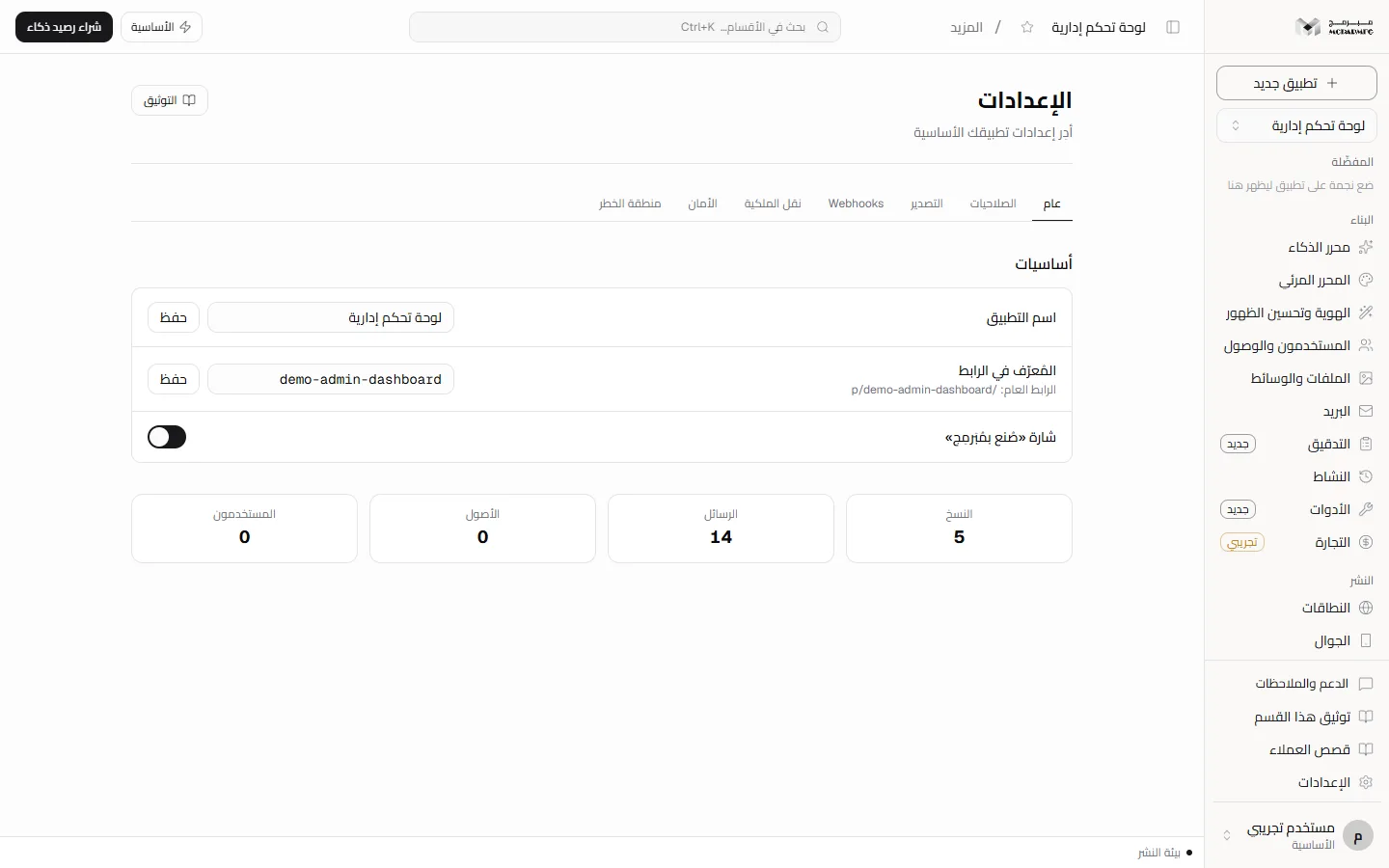
«عام» (General) tab
- Choose «المزيد» (More) in the sidebar; the «عام» (General) tab opens with the «أساسيات» (Basics) panel.
- To rename: edit «اسم التطبيق» (App name) and press «حفظ» (Save) next to it. «حُفظ الاسم» (Name saved) appears.
- To change the link: edit «المُعرّف في الرابط» (Slug; the hint shows «الرابط العام: /p/…», public link) and press «حفظ» (Save). You then see «تغيّر الرابط العام؛ الروابط القديمة لن تعمل» (The public link changed; old links will stop working).
- For the badge: toggle «إظهار الشارة» (Show badge) in the «شارة «صُنع بمُبَرمِج»» (Made with Moparmeg badge) row.
Refusals: «اسم التطبيق مطلوب» (App name required), «الاسم أطول من ٨٠ حرفًا» (Name longer than 80 characters), «المُعرّف يقبل الحروف الإنجليزية الصغيرة والأرقام والشرطة» (Slug accepts lowercase English letters, digits and hyphen), «هذا المُعرّف محجوز للنظام» (Reserved by the system, e.g. api, admin, dashboard, docs), and «المُعرّف مستخدم في مشروع آخر» (Slug used by another project).
Hiding the badge requires the «إخفاء الشارة» (Hide badge) capability, available on «الأساسية» (Basic), «المميزة» (Premium), «الاحترافية» (Professional). On «المجانية» (Free) the row shows «إخفاء الشارة متاح في الباقات المدفوعة فقط — خطة المجانية تشمل القوالب الجاهزة والمحرّر المرئي.» (Hiding the badge is available on paid plans only) and hiding is refused. Below the panel are four counters: «النسخ» (Versions), «الرسائل» (Messages), «الأصول» (Assets) and «المستخدمون» (Users).
«الصلاحيات» (Permissions) tab
- «الظهور العام» (Public visibility): on means «يظهر في المعرض ويفتحه أي أحد» (shown in the showcase, anyone can open it).
- «قابلية الاستنساخ» (Remixable): disabled while the app is private («أن يراه الناس غير أن ينسخوه — فعّل الظهور العام أولًا», seeing is not copying — turn on public visibility first). Turning public off also turns remixing off.
- «الظهور داخل المؤسسة» (Visibility inside the organization): «لا أحد» (No one) or «كل أعضاء المؤسسة» (All organization members).
Each toggle saves immediately with «حُفظ» (Saved).
Project members and invitations
Below the «الصلاحيات» toggles is the «أعضاء المشروع» (Project members) panel. The owner and members with the «مدير» (Admin) role see the invite form; everyone else sees the list and members' roles only.
- Type the invitee's email and choose a role: «مشاهد» (Viewer) reads, «محرر» (Editor) edits content, «مدير» (Admin) manages members.
- Press «دعوة» (Invite). «أُرسلت الدعوة» (Invitation sent) appears and the member is listed as «دعوة معلّقة» (Pending invitation). If email fails you see «حُفظت الدعوة لكن البريد لم يُرسل — أعد الإرسال لاحقاً» (Invitation saved but the email was not sent — resend later), and the invitee gets no acceptance link, since it is sent by email only.
- The invitee receives an email with a «قبول الدعوة» (Accept invitation) button, signs in with the account that has the invited email, and presses «قبول الدعوة وفتح المشروع» (Accept the invitation and open the project).
- An invitation is valid for seven days and can be accepted once. After it expires the row shows «دعوة منتهية — أعد الإرسال» (Invitation expired — resend); press «إعادة الإرسال» (Resend) for a new link.
- To change a member's role pick another role from their list («تغيّر الدور», Role changed); to remove them press «إزالة» (Remove).
Invitation refusals: «بريد غير صالح» (Invalid email), «لا يمكنك دعوة نفسك» (You cannot invite yourself), «هذا البريد لمالك المشروع» (This email belongs to the project owner), «الدعوة مرسلة سابقاً — أعد إرسالها من قائمة الأعضاء» (Already invited — resend it from the member list) and «العضو مضاف سابقاً» (Already a member). On acceptance: «انتهت صلاحية الدعوة — اطلب من صاحب المشروع إعادة إرسالها» (Invitation expired — ask the owner to resend it), «هذه الدعوة لبريدٍ آخر — ادخل بالحساب المدعوّ» (This invitation is for another email — sign in with the invited account), «وثّق بريدك الإلكتروني أولاً ثم اقبل الدعوة» (Verify your email first, then accept) and «الدعوة غير صالحة أو استُخدمت» (Invitation invalid or already used).
«التصدير» (Export) tab
Shown to the owner and platform admins only, because export takes the whole project out; the export routes themselves answer «غير موجود» (Not found) to anyone but the owner.
- «تنزيل ZIP» (Download ZIP) in the «تنزيل شيفرة التطبيق» (Download app code) panel downloads the project files (see Code).
- In «تصدير قاعدة البيانات» (Export database) optionally tick «تضمين الملفات المرفوعة» (Include uploaded files), then press «تصدير ZIP» (Export ZIP). Tables arrive as JSON, and secrets are not exported.
- Below them are «تصدير إلى GitHub» (Export to GitHub), «النشر على Vercel» (Deploy to Vercel) and «النشر على Netlify» (Deploy to Netlify), each using an access token sent once and not stored, plus a «حزمة Docker» (Docker package) download. GitHub details are in Code.
«Webhooks» tab
Requires the «الاستضافة» (Hosting) capability, available on «الأساسية» (Basic), «المميزة» (Premium), «الاحترافية» (Professional). On «المجانية» (Free) the tab shows «الاستضافة متاح في الباقات المدفوعة فقط — خطة المجانية تشمل القوالب الجاهزة والمحرّر المرئي.» (Hosting is available on paid plans only).
- In the «Webhook جديد» (New webhook) panel type a public address starting with https.
- Choose events: «نُشر المشروع» (Project published), «طلب شراء جديد» (New order) and «إرسال نموذج تواصل» (Contact form submitted).
- Press «إضافة» (Add). «سرّ التوقيع — يظهر الآن فقط» (Signing secret — shown only now) appears; copy it to your server, then press «حفظته» (I saved it).
Every request carries the x-mubarmij-signature header, and failures retry automatically with increasing delay up to six attempts. «الـWebhooks المسجّلة» (Registered webhooks) offers an «مفعّل» (Enabled) switch, the delivery log and a «إعادة» (Retry) button. If you see «مفتاح الأسرار غير مضبوط على المنصّة، فلا يمكن إنشاء webhook الآن» (The secrets key is not set on the platform, so no webhook can be created now), adding stays disabled until it is set on the platform server.
«نقل الملكية» (Transfer ownership) tab
Only the owner can transfer. Transfer requires the «نقل الملكية» (Transfer ownership) capability, available on «الأساسية» (Basic), «المميزة» (Premium), «الاحترافية» (Professional). On «المجانية» (Free) it shows in red «نقل الملكية متاح في الباقات المدفوعة فقط — خطة المجانية تشمل القوالب الجاهزة والمحرّر المرئي.» (Transfer is available on paid plans only) and the server answers 402.
- Read the three lines: your plan status, «مرّة كل 30 يومًا» (once every 30 days) with the next allowed date if any, and what the screen says does not move: «التجارة، المدفوعات، التسويات» (commerce, payments, payouts).
- Type the email of an existing Moparmeg account in «بريد المالك الجديد» (New owner's email).
- Optionally tick «انقله إلى مؤسسته لا إلى حسابه الشخصي» (Move it to their organization, not their personal account).
- Type the app name exactly in the confirmation field «اكتب «app name» للتأكيد». The «نقل الملكية» (Transfer ownership) button stays disabled until it matches.
- Press «نقل الملكية». On success «نُقلت الملكية» (Ownership transferred) appears, you are sent to the dashboard, and you lose access immediately.
Refusals: «بريد المالك الجديد غير صالح» (Invalid email), «لا يوجد مستخدم مُبَرمِج بهذا البريد» (No Moparmeg user with this email), «المشروع لك بالفعل» (Already yours), «لا يُنقَل التطبيق إلا مرّة كل ٣٠ يومًا — التالي بعد …» (Only once every 30 days — next after …), «لا مؤسسة لهذا المستخدم — انقل إليه شخصيًا أو اطلب منه إنشاء مؤسسة» (This user has no organization), and «تغيّر مالك المشروع؛ حدّث الصفحة وحاول مجددًا» (Owner changed; refresh and retry).
Not available yet: when the platform runs with its control plane enabled, every transfer is refused with «أوقفنا النقل لأن للمشروع سجل تشغيل مرتبطًا بمالكه الحالي…» (We stopped the transfer because the project has run history tied to its current owner) and ownership does not change, until moving run history with the project is built.
«الأمان» (Security) tab
- X-Frame-Options: pick who may embed your app in a frame.
- HSTS: enter the duration in seconds («٠ يعني مطفأ», 0 means off), tick «النطاقات الفرعية» (Subdomains) or «الإدراج المسبق» (Preload), then «حفظ» (Save).
- Permissions-Policy: press each feature to toggle between «مسموح» (allowed) and «ممنوع» (blocked).
Each save shows «حُفظ وطُبِّق» (Saved and applied); the lower box shows the headers as sent («يسري على الموقع المنشور خلال عشر ثوانٍ», applies to the published site within ten seconds). See Security.
«منطقة الخطر» (Danger zone): deletion
- First download a copy from the Export tab if you may need the app.
- Open «منطقة الخطر» and read «حذف التطبيق نهائيًا» (Delete the app permanently) with the counts of versions, messages and users.
- Type the app name exactly in the field. «حذف نهائيًا» (Delete permanently) stays disabled until it matches.
- Press «حذف نهائيًا». «حُذف التطبيق» (App deleted) appears and you are sent to the dashboard.
Only the owner can delete. Everything is deleted with no undo: files, versions, users, secrets, domains, audit log, tests, push campaigns and their subscribers, webhooks with their delivery log, and members. Refusals: «اكتب اسم التطبيق بالضبط لتأكيد الحذف» (Type the app name exactly to confirm deletion) and «تغيّر المشروع؛ حدّث الصفحة وحاول مجددًا.» (The project changed; refresh and retry).
FAQ
Does the old link still work after changing the slug?
No. Old links stop working, and the screen warns you after saving.
Can I get back an app I transferred?
Not from your side; only if the new owner transfers it back to you.