

Visual editor
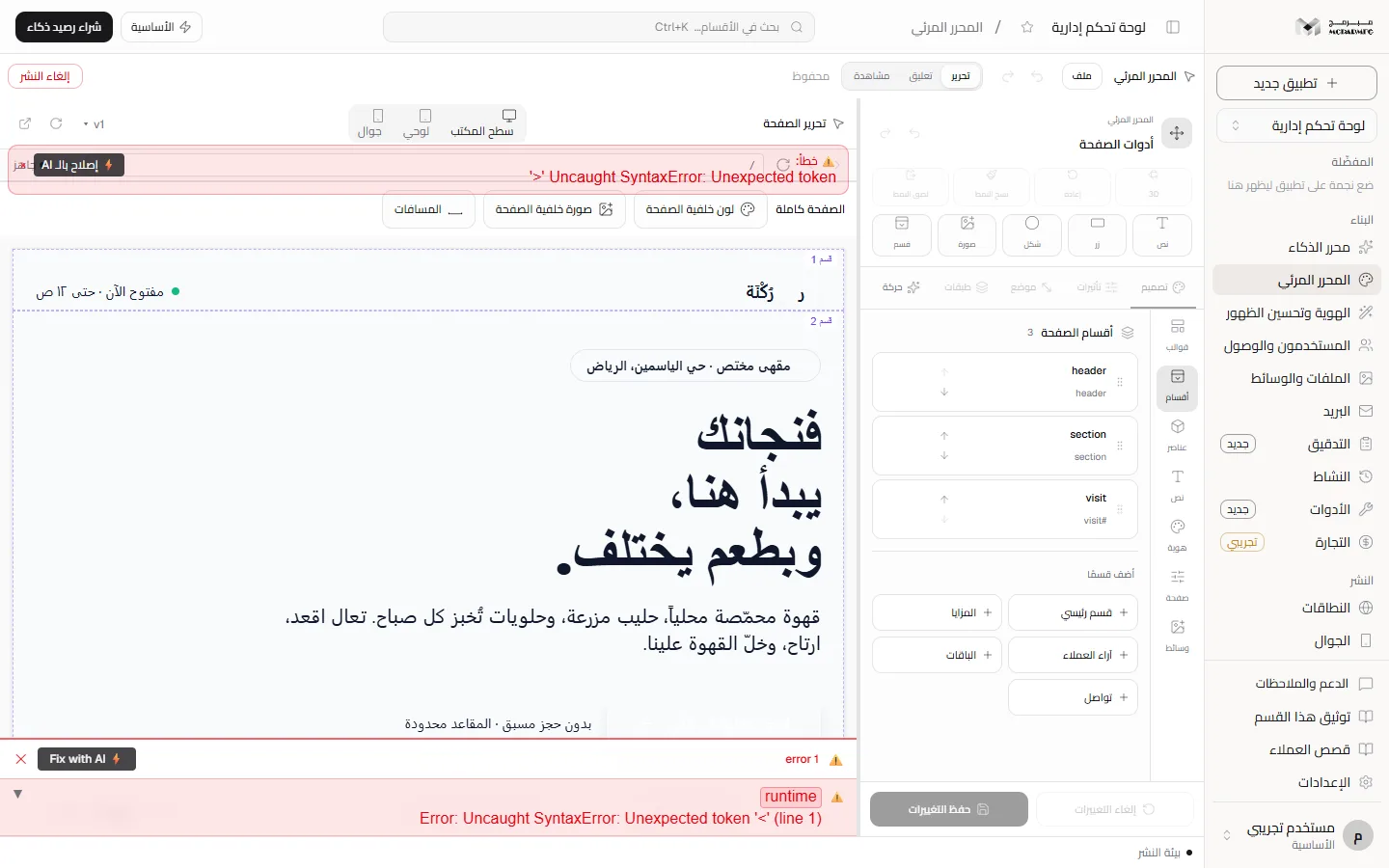
The «المحرر المرئي» (Visual editor) section of the project workspace
«المحرر المرئي» (Visual editor) is the second entry of the «البناء» (Build) group in your project sidebar. It is where you edit the page by clicking instead of writing to the AI, and it is open on every plan.
On this page
Where to find it
Open any project. The sidebar has a «البناء» (Build) group whose first two entries are «محرر الذكاء» (AI editor) and «المحرر المرئي» (Visual editor). The entry opens /projects/[id]/visual, and its subtitle reads «اضغط على أي عنصر في المعاينة لتعديل نصه أو نمطه» (Click any element in the preview to edit its text or style).
Who can use it
The section requires no plan capability, so it shows no lock on any plan. The lock message on paid sections says outright that the «المجانية» (Free) plan «تشمل القوالب الجاهزة والمحرّر المرئي» (includes ready-made templates and the visual editor). If you open «محرر الذكاء» (AI editor) on the free plan, the message box has a «افتح المحرّر المرئي» (Open the visual editor) button that brings you here.
What you do there
- Edit text in place: select the element and type over it.
- Change the look: colours, spacing, position, layers and motion from the inspector tabs.
- Add and reorder: sections, templates, elements and images from the side-column panels, and reorder sections and elements by dragging or with the keyboard.
- Pages: add, duplicate or delete a page from under the canvas.
- Work modes: «تحرير» (Edit), «تعليق» (Comment) and «مشاهدة» (View) in the header.
- Export: «تصدير HTML» (Export HTML) or «تنزيل المشروع ZIP» (Download project ZIP) from the «ملف» (File) menu.
The step-by-step detail — what is saved and where, undo, shortcuts and limits — is in the visual editor guide.
How it differs from the AI editor
| Visual editor | AI editor | |
|---|---|---|
| How you edit | Clicking the element | Chat |
| Side column | Inspector | Chat |
| AI quota | Not used | Every request counts |
| Free plan | Available | Locked |
To build by chat see the AI editor section; to start from a ready design see Templates.