

Workspace sections
Files and media in Mubarmij
Every image you upload here is stored on Mubarmij's server with a stable link starting with /uploads/, and registered to your project so it appears on this page. Uploads are images only, one file at a time.
On this page
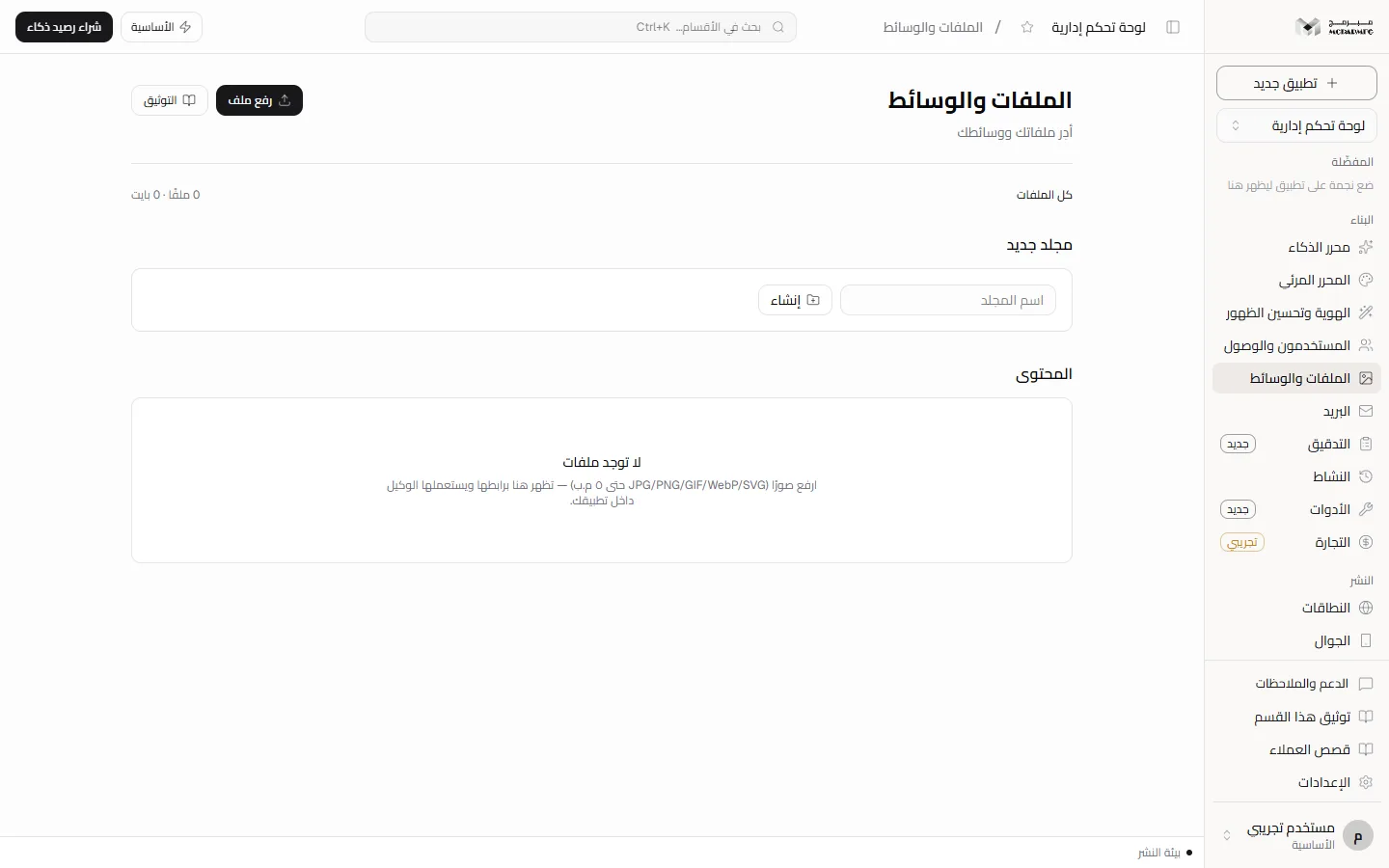
Uploading a file
- Open «الملفات والوسائط» (Files and media) from the «البناء» (Build) group in the sidebar. The section is available on every plan.
- Click «رفع ملف» (Upload file) at the top and pick one image.
- On success «تم الرفع» (Uploaded) appears and the image joins «المحتوى» (Content) with its thumbnail, name and size.
Accepted types: JPG, PNG, GIF, WebP and SVG; the server also accepts AVIF and ICO. The limit is 5 MB per file on every plan. Failure messages:
- «نوع الملف غير مدعوم. استخدم: JPG, PNG, GIF, WebP, SVG» (Unsupported file type) — for a PDF, video or any other type.
- «حجم الملف أكبر من 5MB» (File larger than 5MB).
- «المشروع غير موجود» (Project not found) — you are neither the owner nor a collaborator who accepted the invitation, or the project was deleted.
- «صلاحيتك في هذا المشروع للمشاهدة فقط» (Your access to this project is view-only) — you are a «مشاهد» (Viewer) collaborator; uploading needs the «محرر» (Editor) or «مدير» (Admin) role.
- «تعذّر الاتصال بالخادم» (Could not reach the server) — the connection dropped before the request arrived.
Using a file
An image's link is its server address (/uploads/…). The page has no "copy link" button, but you can copy the image address from the browser's right-click menu on the thumbnail. Use the link in «أيقونة التبويب» (Tab icon) or «صورة البطاقة» (Card image) under Branding and visibility, or inside your pages.
Deleting a file
Hover over the thumbnail to reveal the delete button, then click it. Deletion is immediate, with no confirmation, and removes the file from the server too. Any page using its link will show a broken image.
A collaborator with the «مشاهد» (Viewer) role can only browse files and folders. Uploading and deleting files, and creating or deleting folders, need the «محرر» (Editor) or «مدير» (Admin) role.
Folders
- In «مجلد جديد» (New folder), type «اسم المجلد» (Folder name, no slashes) and click «إنشاء» (Create). «أُنشئ المجلد» (Folder created) appears.
- Click a folder to open it; use the breadcrumb starting with «كل الملفات» (All files) to go back.
- To delete a folder, hover and click its delete button. It is refused if it has subfolders: «المجلد يحتوي مجلدات فرعية — احذفها أولًا» (The folder has subfolders — delete them first).
Not available yet: putting files inside folders. A file is not recorded with its folder when uploaded, so «المحتوى» (Content) shows all project files in whichever folder you open. Folders are organisational names only for now.
Limits by plan
A counter at the top reads like "12 files · 3.4 MB". The size is the total of all project images; the count is of those listed. The list shows the latest 500 files only.
The plan's project size limit applies to the project's own files (pages and code) when they are saved:
- «المجانية» (Free): 1 MB
- «الأساسية» (Basic): 10 MB
- «المميزة» (Premium): 50 MB
- «الاحترافية» (Professional): 50 MB
When a save exceeds it, the server returns HTTP 413 with «حجم المشروع … ويتجاوز حدّ باقتك … احذف ملفّات أو رقِّ باقتك.» (Project size exceeds your plan limit — delete files or upgrade). Images uploaded here are stored separately from project files, and the upload route enforces no per-plan total on them; the only limit is 5 MB per file. To upgrade, see Billing.
FAQ
Can I upload several files at once?
No. «رفع ملف» (Upload file) takes one file at a time.
Can I upload a font or a PDF?
No. The route accepts images only and refuses anything else with «نوع الملف غير مدعوم» (Unsupported file type).